The web is full of ready-made SEO prompts for ChatGPT, Claude, and other AI tools. Most of them help you write things like meta descriptions or outlines. But if you ask the AI where your page ranks for a keyword or what technical errors it has, you get general tips instead of real numbers. That’s because your AI tool can’t see your website.
The 22 prompts in this post are different: they work with your real data and pull rankings, audit results, backlinks, and keyword data directly from your SEO software. That’s possible thanks to the Model Context Protocol (MCP), which connects your AI tool to that software. You can copy all the prompts and use them right away for your own project.
In this post, you’ll learn …
- why most SEO prompts produce text but no numbers,
- how to structure a good data prompt,
- 22 ready-to-use prompts for rankings, Website Audit, competitors, backlinks, keyword research, and reporting,
- what MCP and AI-powered SEO can’t do (yet).
Why most SEO prompts only produce text
ChatGPT, Claude, and similar tools answer almost any SEO question fluently and, more often than not, correctly. They know the SEO basics, can explain any technical term, and will write you an action plan in seconds. But they can’t see your website. Without a connection to your data, they have no idea where you rank, what technical errors your pages have, or who links to you. If you ask about your positions or your backlinks anyway, the model fills the gap with general knowledge or, worse, makes up numbers (what’s known as a hallucination).
A better prompt won’t fix this, because what’s missing is access to your data. The AI can only give you real numbers once it can pull your rankings, your latest crawl, and your backlink profile on its own. And that’s exactly the connection an MCP provides.
Seobility has its own MCP, which gives your AI tool access to the data in your Seobility account: rankings from Ranking Monitoring, Website Audit results, and your projects’ backlinks and competitors. It also includes live tools that work without a project, such as the Ranking Checker, SEO Checker, and keyword research. Your AI assistant picks the right one based on your question.
Here’s the same SEO question with and without an MCP connection:
Note: The screenshots in this article are for illustration only and contain sample data from a demo shop.
Without an MCP connection
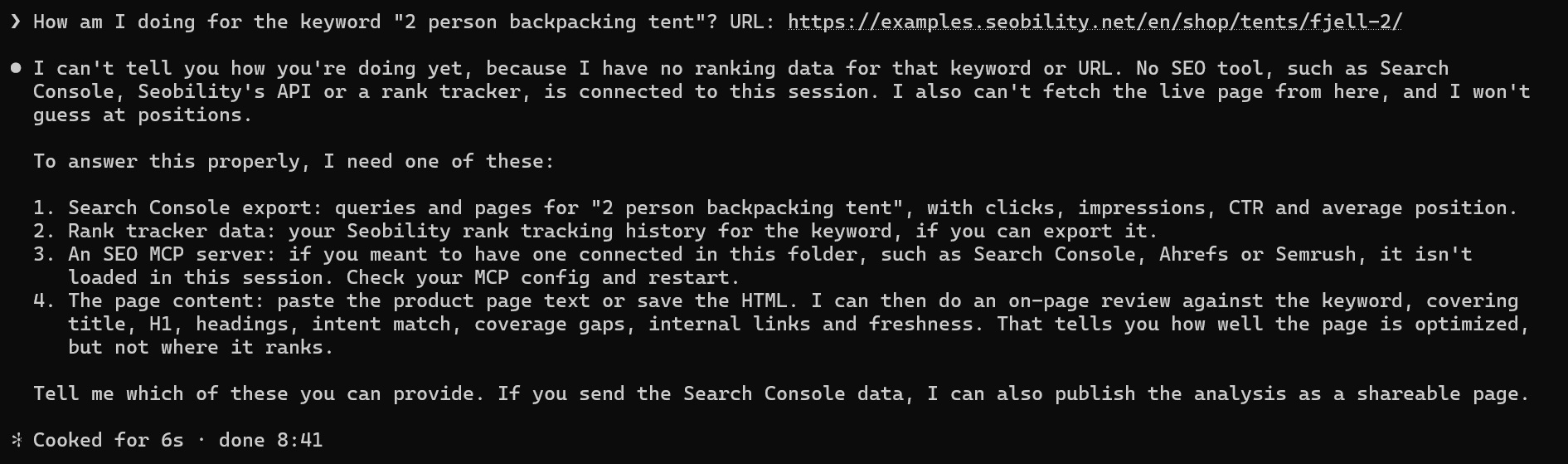
Without access to data, the AI can only guess. Instead of a position, you get general tips and a suggestion to check Search Console yourself.
With an MCP connection

Connected through the Seobility MCP, the same question returns real numbers: position, search volume, and the page’s optimization score. The AI also points out where you can improve.
How to set up the Seobility MCP
Setting up an MCP usually takes just a few minutes and doesn’t require any coding. You enter the server address in your AI tool, log in with your Seobility account, and allow access. No API key required. Before you start, though, make sure you have two things:
- A paid Seobility plan. The MCP is included in the Premium, Professional, and Agency plans. Your plan determines how many credits you get for data queries and live checks. You can try Seobility free for 14 days, MCP included.
- An MCP-compatible AI client. That’s the app you chat with, such as Claude, ChatGPT, or Cursor.
💡 Tip: Claude or ChatGPT in the browser is enough to get started. If you run big queries regularly, command-line tools like Claude Code are worth a look: they cache large responses and only pass the relevant parts on to the model. This saves tokens, which count against your AI tool’s usage allowance. The setup steps for Claude, ChatGPT, and other AI tools are in our Help Center guide.
Once you’re connected, you’re ready to go. To get precise answers, though, it helps to know how to build a prompt that pulls data.
How to structure a good data prompt
A prompt that pulls SEO data works differently from one that writes content. Giving the AI a role, a tone, or a target audience doesn’t help much here. What matters are the details the query needs. Here’s how:
- Name the project, URL, or keyword exactly as it’s stored in your SEO tool: the AI assistant uses it to find the right entry in your account. If you monitor several projects and don’t name one, it either asks or picks the first one it finds. It’s best to put keywords in quotation marks so it’s clear where the search query starts and ends.
- Say where the data should come from, using the feature names: naming the area tells the AI which tool to call, whether that’s Ranking Monitoring, Website Audit, SEO Checker, backlinks, keyword research, or competitors. A vague question like “How’s my site doing?” could mean a dozen things. Ask for “the current rankings from Ranking Monitoring,” and the AI knows exactly where to look.
- Narrow it down by search engine, device, location, and time period: for example, say which search engines to check. You can also split desktop and mobile rankings, only include local searches, or set a time frame such as “the last 30 days” or “compared with the last crawl.”
- Limit the output and name the format: phrases like “the top 10,” “the five biggest losers,” or “only the errors, without comments” keep the answer manageable. Long lists take time and are hard to read in a chat. If you also name a format, like “as a table with keyword, old position, and new position,” you won’t have to ask the AI to reformat it later.
- Ask the AI to report missing data as missing: adding something like “If there’s no data, tell me instead of guessing” keeps the AI from quietly filling in the gaps.
Let’s put this to work in Seobility. Each section below comes with prompts you can copy and use.
Check your rankings
You’ll find your Google rankings in two places in Seobility: your project’s Ranking Monitoring tracks every keyword you’ve added and records how its position changes over time. For a keyword you’re not monitoring yet, there’s the Ranking Checker, which runs a one-time live check. Pick the prompt that matches your question:
Prompt 1: Check your current position for a keyword
Where you rank for your most important keywords largely decides whether people find your page on Google and, ideally, click through. So it’s usually the first thing you check. Try this prompt for a specific keyword:
Where does [my domain] rank for “[my keyword]” on google.com (desktop)? Give me the position, the ranking URL, and the monthly search volume.
Example:

What this tells you: where you stand for this keyword today, and whether the search volume makes it worth optimizing further.
A single position doesn’t show you who you’re up against, though. So follow up with:
Show me the complete top 10 for this keyword as a table with position, URL, and title.
This list shows what kind of pages Google prefers for the query and whether your page matches the search intent at all.
Prompt 2: Track how your rankings change over time
Your ranking trend over several weeks tells you more than today’s position: it shows where your work is paying off and where rankings are slipping before your traffic takes a hit. Here’s how to see the biggest changes from the last 30 days:
How have the rankings in my [project name] project changed over the last 30 days? Show me the five biggest winners and the five biggest losers as a table with keyword, old position, new position, and difference.
Example:

What this tells you: which keywords are moving. Winners show what’s working right now, and losers show where to take a closer look before traffic drops. Don’t worry about daily ups and downs: what matters is the 30-day trend.
Prompt 3: Check your visibility in AI Overviews
For many searches, Google now puts an AI-generated summary above the regular results. These are called AI Overviews. They answer the question in a few lines and link to their sources. A mention there puts you above even the top organic result. Use this prompt to check whether Google cites you in these answers:
For the ten keywords with the highest search volume in my [project name] project, check whether I’m mentioned in Google AI Overviews. Which of them do I rank in the top 10 for without getting cited?
Example:

What this tells you: whether Google uses your content in its AI answers. Keywords where you’re in the top 10 but don’t get cited are the best candidates for a content refresh. Turn the question behind the keyword into a subheading and answer it directly in the first sentence or two below it. If a keyword doesn’t trigger an AI Overview, there’s nothing to change.
Now you know where you stand, how your rankings are changing, and whether Google cites you in its AI answers. Next, the Website Audit shows you whether technical issues are holding your pages back.
Audit your website
Many technical errors aren’t obvious when you browse your own website: missing meta tags, duplicate H1 headings, or pages with error codes. Seobility’s Website Audit brings problems like these to light, and you can run it straight from your AI tool.
Prompt 1: Start a crawl and check its progress
If you need fresh audit data, say after a website relaunch or after fixing errors, have the AI assistant start the crawl:
Start a new crawl for my [project name] project. Then check the status: is it still running, and how many pages have been found and crawled so far?
Example:

What this tells you: whether your audit data is up to date and how big your website is from the crawler’s point of view. If it found far more pages than it crawled, you may have hit your crawl limit, or it’s picking up pages that shouldn’t exist, such as URLs with parameters.
💡 Tip: Depending on the size of your website, a crawl can take several hours, so give it time.
Prompt 2: Find pages with error codes and redirects
Status codes show you whether a page loads normally, redirects, or returns an error. Error pages don’t deliver any content to users or search engines, and every redirect adds an extra step when the page loads. Here’s one way to check which pages are affected:
Which pages in my [project name] project returned an error code or a redirect in the last crawl? Show me the distribution of status codes and list the pages that return a 404 or 5xx error.
Example:

What this tells you: how many pages load directly, how many only via redirects, and how many don’t load at all. 404 errors often point to deleted pages or broken internal links. It’s best to 301-redirect deleted pages to the most relevant alternative and update internal links to the new URL. A large number of redirects usually means your URL structure has grown messy over time. Since each one adds load time, avoid redirect chains. Our wiki has an overview of the most important website status codes.
Prompt 3: Find missing or duplicate meta titles
The meta title is one of the most important on-page factors, because it shows Google and other search engines what a page is about and appears as the headline in the search results. That’s why every important page needs a unique, descriptive title. Use this prompt to find out which pages have no title or the same title as other pages:
Which pages in my [project name] project have a missing or duplicate meta title? Group the duplicates by title and list the affected URLs for each group.
Example:

What this tells you: which pages appear in the search results without their own title or can be confused with other pages. Duplicate titles usually come from templates or pagination, missing ones from forgotten or auto-generated pages. For more, see our wiki article on the meta title.
Prompt 4: Check a single page live
The Website Audit evaluates your entire website. But to improve one specific page, it helps to analyze that URL on its own. Here’s the prompt:
Run a full SEO check for [my URL] and tell me what I should optimize on the page first.
Example:

What this tells you: how the page scores in each category and which issue to tackle first.
Prompt 5: Prioritize the most important issues
On most websites, the Website Audit finds more issues than you can fix at once. Not every issue matters equally, so start with the most serious ones that affect the most pages. Use this prompt to have the AI rank the issues from your latest crawl:
What are the five most important issues from the latest crawl in my [project name] project? Sort them by impact, and for each one, tell me how many pages it affects and whether it’s gotten better or worse since the last crawl.
Example:

What this tells you: where you should start, based on impact and the number of affected pages. The change since the previous crawl shows you whether your earlier fixes have worked.
Once your own site is in good shape, it’s time to check on the competition: how they’re doing and where they outrank you.
Keep an eye on competitors
Through the MCP, the AI can suggest and add competitors, track how they’re doing compared with you, and show you keyword by keyword where they’re ahead. The prompts below cover each step.
Prompt 1: Find and add competitors
Your SEO competitors are the domains that show up in the search results for the same keywords as you. You can only compare rankings and visibility properly once you’ve added them to your project. Here’s how to find out which domains compete with you most often for your keywords:
Which domains rank most often for the keywords in my [project name] project? Show me the ten most frequent ones with the number of shared keywords and add the three most relevant as competitors. Leave out platforms like YouTube, Wikipedia, or LinkedIn.
Example:

What this tells you: who actually competes for your keywords, and it’s often not who you’d expect. The more keywords you share, the more directly you compete.
💡 Tip: Platforms like YouTube, Wikipedia, or Reddit rank for almost every topic, so exclude them in your prompt. That leaves you with your real competitors.
Prompt 2: Compare your visibility with a competitor’s
The clearest sign that a competitor is catching up is a rise in their overall visibility. If theirs rises while yours stays flat, take a closer look at their content and links. Ask:
How has [competitor]’s visibility in my [project name] project changed over the last four weeks, and how does it compare with mine? Also tell me how many of my keywords they rank for.
Example:

What this tells you: whether you’re ahead of a competitor or falling behind. Visibility combines all positions, weighted by search volume, into a single number, so it’s better for comparisons than individual rankings. If there’s a gap, the backlink profiles often explain why.
Prompt 3: Find where competitors outrank you
Keywords where a competitor is just slightly ahead of you are often easy wins. That’s why it pays to compare positions side by side, keyword by keyword:
Which keywords in my [project name] project does [competitor] outrank me for? Show me the keywords with search volume, my position, and their position. Put the biggest opportunities first: high search volume and a small gap to the competitor. Also flag keywords they rank for that I don’t rank for at all.
Example:

What this tells you: where to start. At the top of the list are keywords with high search volume where you’re only a few positions behind. Keywords you don’t rank for at all point to topics you haven’t covered yet.
Prompt 4: See who’s ahead of you for a single keyword
For a keyword that’s especially important for your business, looking at positions alone isn’t enough. The page that outranks you is more revealing, because it shows you what kind of answer Google wants for this query. Here’s how to find it:
How do my competitors in my [project name] project rank for the keyword “[keyword]”? Show me the position and ranking URL for each competitor and tell me which page I should look at first.
Example:

What this tells you: which competitor page ranks ahead of you, and what you can learn from it. If a page appears as a highlighted answer box above the search results (a featured snippet), take a look at how directly it answers the question. That short, direct answer is often what’s missing on your own page.
Check your backlinks
Backlinks are links from other websites to yours, and Google still treats them as a sign of trust. Through the MCP, you can find out which external pages link to you, whether you’ve gained new backlinks, what your anchor texts look like, and whether any links point to pages that no longer exist on your site.
Prompt 1: Track new and lost backlinks
Backlinks come and go, for example when an external page is deleted or an article gets revised. Losing a link from a strong domain can hurt your rankings, so check your backlinks regularly:
How has the backlink profile in my [project name] project changed over the last 30 days? Show me the ten most important new backlinks and the ten most important lost ones, with linking domain, target URL, anchor text, and domain rating.
Example:

What this tells you: who’s started linking to you and which links you’ve lost. A lost link from a highly rated domain is worth following up on, while lots of new links from link sellers or directories are just noise.
💡 Tip: Seobility rates every backlink with the Link Rating, a score from 0 to 100 that shows how strong a link is. Links with a rating below 20 tend to be low quality. So set a minimum in your prompt, such as “only links with a Link Rating of 20 or higher.” Without it, your list of lost links will also include links from domains you don’t even want, such as link sellers or directories.
Prompt 2: Analyze anchor texts
Anchor texts (the linked words) tell Google what the target page is about. A natural profile mixes brand names, URLs, and generic phrases. An unusually high share of exact-match keywords or off-topic terms, by contrast, points to bought or spammy links. Here’s how to get a list of your domain’s anchor texts:
Which anchor texts do sites linking to [domain] use? Show me the 20 most frequent ones with the number of linking domains and flag anchor texts that look like spam.
Example:

What this tells you: which words others use to describe your website, and whether brand names, generic phrases, or keywords dominate. Suspicious anchor texts help you catch spam links before they become a problem.
💡 Tip: Start your spam check with the anchor texts. Have the AI list the linking domains for a suspicious anchor text, then decide whether to disavow them with the Google Search Console Disavow tool. But Google only recommends this if lots of unnatural links point to your site and they’ve already triggered a manual action, or likely will.
Prompt 3: Rescue broken backlinks
When other websites link to pages that no longer exist on your site, the link juice goes nowhere. Here’s how to find these broken backlinks:
Which backlinks in my [project name] project point to pages on my site that no longer exist? List the broken target URLs with the number of linking domains and suggest where I should redirect them.
Example:

What this tells you: which links are going to waste because the target page no longer exists on your site. A redirect saves the link without you having to contact the linking site. Start with the target URLs that have the most linking domains.
💡 Tip: If the link building analysis isn’t running in your project yet, the AI will start it in the background when you ask. This takes a while, so check back later. Keep in mind that the AI only gives you the list and suggestions: you still set up the redirects yourself, in your CMS or on the server.
Find new keywords
So far, we’ve covered keywords and topics you already know. Keyword research helps you find the ones you haven’t discovered yet: topic variations, the questions people ask Google, keywords your competitors rank for but you don’t, and the keywords your own domain already shows up for.
Prompt 1: Get keyword ideas for a topic
New content only brings in traffic if people actually search for its topic. So before you plan a piece, check which related terms people look up and how often. Here’s how to get variations for a seed keyword:
Give me 20 keyword ideas around “[my topic]” for google.com with search volume, competition, cost per click, and search intent. Sort by search volume, merge duplicates, and leave out foreign-language keywords and competitors’ brand names.
Example:

What this tells you: how people actually search for your topic and where the demand is. The search intent tells you whether a keyword needs a guide or a product page.
Prompt 2: Find the questions people ask about a topic
The questions people type into Google show you what they want to know, and they make great subheadings and FAQ entries. Here’s one way to find the questions Google shows for your topic:
What questions do people ask on Google about “[my topic]”? Show me the questions and related searches with search volume and search intent and group them by theme.
Example:

What this tells you: which questions your audience asks and, with that, which sections and FAQs your piece needs. Question-and-answer pairs like these are exactly what Google and AI search like to pick up.
Prompt 3: Find keyword gaps against a competitor
A competitor’s keywords show you topics with proven demand that you don’t cover yet. To find your content gaps, use this prompt:
Which keywords does [competitor.com] rank for in the top 20 on google.com but [my-domain.com] doesn’t? Show me the 20 with the highest search volume and filter out everything that has nothing to do with my topic.
Example:

What this tells you: which topics a competitor ranks for that you don’t cover at all. Once unrelated topics are filtered out, you’re left with a list of content you’re missing, sorted by how much search volume is up for grabs.
💡 Tip: A gap list is only as good as the competitor you choose. A blog with broad advice might rank for a thousand topics that have nothing to do with what you offer. Tell the AI your topic so it can filter the list, and pick a competitor with a similar offering, not just a big audience.
Prompt 4: See which keywords your domain already ranks for
Many websites rank for far more keywords than they’ve added to Ranking Monitoring. These keywords go unmonitored, even if they bring in traffic. Here’s how to find them:
Which keywords does [my domain] rank for in the top 20 on google.com? Show me the 20 with the highest search volume, with position and search intent, and suggest which of them I should add to Ranking Monitoring.
Example:

What this tells you: what your website is visible for today, including keywords you never targeted. Each keyword’s share of your visibility shows which ones carry your traffic, and those are the ones to add to Ranking Monitoring.
By now, you’ve queried positions, pages, competitors, links, and keywords one by one. The last section shows you how to pull it all together each month without retyping everything.
Build your monthly report
A report asks the same questions every month, and that’s where the MCP pays off most. Instead of querying rankings, audit, and backlinks one by one and copying the numbers into a document by hand, you give your AI assistant the structure once. It calls each tool in turn and puts the numbers in context. If Notion or Google Docs is also connected to your AI tool, it can save the results there directly.
Prompt 1: Get your monthly report in the chat
A regular report shows whether your SEO work is paying off and helps you plan the next month. To keep the format consistent, combine rankings, Website Audit, and backlinks in a single request:
Create a monthly report for my [project name] project with three sections. Rankings: visibility and average position with change, plus the five biggest winners and losers of the last 30 days. Website Audit: page score, number of issues, and change since the previous crawl, plus the three most important issues. Backlinks: referring domains with change, new and lost links. Write three sentences of context for each section and three recommendations for next month at the end.
Example:

What this tells you: where all three areas stand and how the month went. The recommendations at the end are your to-dos for next month.
💡 Tip: State the time period explicitly, the last 30 days in our example. Otherwise, each Seobility tool uses its own default time window, and the sections won’t cover the same period. Depending on who the report is for, you can tailor it further, for example by adding explanations for non-SEO colleagues or asking for charts.
Prompt 2: Save the report to Google Docs or Notion
A report buried in your chat history is hard to find and awkward to share. So it’s worth saving it directly where your team works, for example in Google Docs or Notion. For that, you need the tool’s own MCP connected alongside the Seobility MCP. Then use this prompt:
Write this report as a new document titled “SEO Report [month] [project name]” in Google Docs in the folder [folder name]. Use a heading for each section, keep tables as tables, and send me the link when you’re done.
Example:

What this tells you: that the report landed where your team will read it, with no copying or reformatting. The AI tool’s notes show you what the second MCP couldn’t do and what you need to finish by hand.
💡 Tip: If the AI isn’t sure which tool to use, name both connections in the prompt: “Get the data through Seobility, write the document through Google Docs.” Then it’s clear which tool handles which step.
Prompt 3: Compare with last month
A single report is just a snapshot. To see a trend, compare it with the previous month. This also lets you check whether you’ve implemented the recommendations from the last report and whether they’re working. The AI reads last month’s report and checks it against your current Seobility numbers:
Read last month’s report from [link to the document] and compare it with the current numbers for my [project name] project. Summarize the three biggest changes and tell me which of last month’s recommendations show up in the numbers.
Example:

What this tells you: whether your changes worked. The side-by-side comparison separates trends from one-off fluctuations, and checking the recommendations shows whether you’ve done what you set out to do.
What the Seobility MCP can’t do (yet)
The Seobility MCP is a connection to your data, not a machine that optimizes your website for you. Keep these four limits in mind so you know what to expect. And since the MCP is still in beta, the occasional answer may surprise you.
1. It reads and adds, but it doesn’t delete
Through the MCP, your AI tool can pull data from your account and make a few changes: add keywords to Ranking Monitoring, add competitors, or start a crawl or a link building analysis. What it can’t do is remove anything. If it adds the wrong keyword or competitor, that stays in your project until you delete it manually in your Seobility account. This is a deliberate safety limit: even if someone gets access to your MCP connection, they can’t wipe your project. You can also disconnect AI tools at any time in the “MCP” tab of your account settings.
2. It doesn’t fix issues on your website
The Website Audit finds missing titles, broken links, or duplicate content, and your AI tool explains what’s behind them and what to tackle first. But you have to make the fixes yourself, either manually or through a second connection that links your AI tool to your CMS.
3. Every query costs credits
Every MCP query uses credits from your plan’s monthly allowance. The cost varies by request: live tools like the Ranking Checker, SEO Checker, or keyword research use significantly more credits than queries about your project data, such as rankings or audit results. It only gets “expensive” when you run live tools in bulk, say, keyword research for a hundred terms. To see where you stand, just ask your AI tool, “How many credits do I have left?” It’ll tell you your balance, monthly limit, and reset date.
4. The AI can still misread the numbers
The MCP delivers the numbers from your account, but the language model still does the analysis. So the AI may misread a number, mix up time periods, or see a trend in a small fluctuation. Double-check numbers that look off in your Seobility account before acting on them, especially if a recommendation would mean major changes to your website.
FAQ
Bottom line
Until now, ChatGPT and similar tools couldn’t tell you much about your own site, and no prompt could fix that: they simply couldn’t see your data. With the MCP, your AI tool does the data gathering for you. What you do with the results is still up to you.
Try it out: the Seobility MCP is included in all three paid Seobility plans. To see which plan fits your website and what each one includes, visit our pricing page.