As the world’s most popular CMS, WordPress offers huge advantages. These include endless customization with plugins and themes, as well as full control over your own data — something that many other platforms can’t match.
But this flexibility doesn’t eliminate the need for performance optimization. Page speed remains critical for user experience, crawlability, and ultimately, your SEO, GEO, and marketing success.
In this post, we’ll walk you through practical WordPress speed optimization tips to help your site load lightning fast.
- 1. Control WordPress Heartbeat
- 2. Optimize Images
- 3. Implement caching
- 4. Choose fast hosting
- 5. Limit blog posts shown on archive pages
- 6. Optimize comments for performance
- 7. Limit page and post revisions
- 8. Clean up the WordPress database
- 9. Remove unused or redundant plugins
- 10. Disable heavy, intensive features, plugins, or functions
- 11. Disable Emojis
- 12. Optimize Disqus Comments
- 13. Change your theme to a light theme built for speed
- 14. Avoid Using Page Builders
- 15. Identify Slow Plugins using Query Monitor
- More you can do?
Note: Not sure what page speed you should be aiming for? Then check out our post on how fast your website should load. It goes into detail on just this question, showing you exactly which metrics to look at and why.
1. Control WordPress Heartbeat
Difficulty: Easy
Why should you do it?
WordPress uses the Heartbeat API to send data between the server and browser in real time. It’s a useful feature that facilitates functionality like auto-saving, post locking, and real-time notifications.
But on the default setting, the Heartbeat API “beats” a little too fast, sending a request every 15 seconds when an administrator is editing a post. This can increase server load and, ultimately, slow down your WordPress site.
Fortunately, it’s easy to fix.
How to do it
If you’re using WP Rocket, all you need to do is check the “control heartbeat” box.
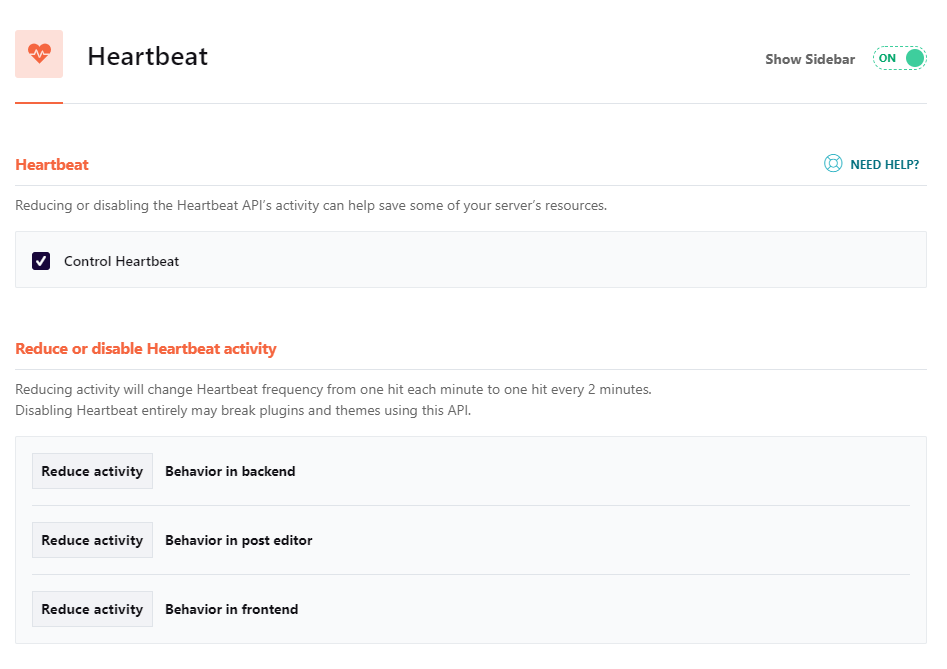
Or alternatively, you can use the free, stand-alone Heartbeat control plugin.
(you can even disable Heartbeat completely by editing your theme’s functions.php file, although this isn’t recommended for most setups.)
Further reading: WordPress Heartbeat API: What It Is And How To Manage It (GigaPress)
2. Optimize Images
Difficulty: Easy
Why should you do it?
Images are generally some of the biggest files on a page – especially if they’re not optimized. Unoptimized images, high-quality ones in particular, can therefore really slow your site down.
By optimizing images, you can shrink their size by 70% or more, reducing the page size significantly.
How to do it
First, you should check the file format of the image. For graphics and transparent images, WebP is generally preferred. It allows for better compression and reduces the file size much more effectively than formats like PNG or JPEG.
Next, it’s important to check if the image has the correct dimensions and is the correct size. If the maximum size an image is displayed at is 1200x800px, using an image that’s 10,000×10,000px results in a very large file size for no added benefit.
You should also compress the image. The best way to do this is to use an image compression tool. There are many free options out there, like TinyPNG and Optimizilla, which can be found with a quick Google search.
You can also use an image compression plugin like Smush, ShortPixel, or Imagify to do this quickly on WordPress. On top of the above-mentioned things, these plugins can also allow you to lazy-load images and even serve them over a CDN, further reducing load times.
3. Implement caching
Difficulty: Easy
Why should you do it?
Caching saves static versions of dynamic content so that it can be served to users quickly, without needing to regenerate the page each time it is accessed. This speeds up your site by reducing server load.
How to do it
You can achieve this very easily on WordPress by installing a caching plugin, like W3 Total Cache, LiteSpeed Cache or WP-Optimize.
You can also implement a CDN like Cloudflare on your WordPress site. It stores cached copies of your website’s static resources in multiple locations around the world, serving them from close to your users, reducing load time.
Lastly, some hosting providers offer server-side caching directly. Some examples include WPEngine with EverCache, Pressidium with their recently launched PressidiumEDGE, and Kinsta who also have their own caching solution.
4. Choose fast hosting
Difficulty: Easy
Why should you do it?
A good hosting provider/package can make or break your WordPress site’s speed. This is especially true when running heavier WordPress setups like WooCommerce, Buddyboss, or Memberpress.
The good news? You have plenty of options to choose from, and there are even specialized hosting providers with plans specifically tailored to large sites.
How to do it
If you already have a website set up with one of the large hosting providers like GoDaddy, Kinsta, or Siteground, and you’re experiencing slow load times, then the first step is to see if they have a plan that meets your needs.
Usually, you can upgrade your plan quickly, without any issues or downtime. This also saves you from having to look for a new hosting provider.
If not, or if you want to move to a host that specializes in speed, there are many options. Some specialized managed WordPress hosting providers with a focus on speed include Pressidium, Rapyd Cloud, and Rocket.net.
5. Limit blog posts shown on archive pages
Difficulty: Easy
Why should you do it?
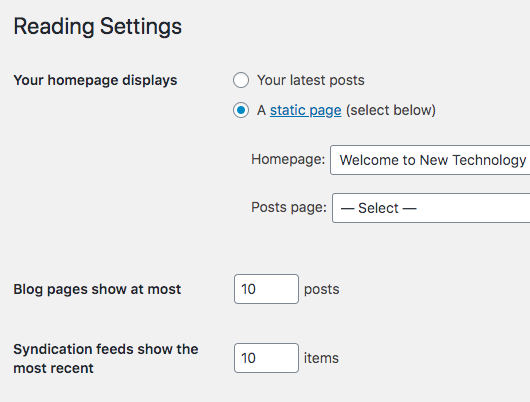
Out of the box, WordPress will limit the number of blog posts shown on archive (category/tag) pages to ten. So if there were twenty posts in a particular category, WordPress would split this into two pages.
But you can set this number as high as you want. So why shouldn’t you show more posts on a single page?
Because more posts on a page means more iterations for WordPress to loop through (server load) and more images on the page (slower for users).
So we’d recommend keeping the number of posts on an individual page to a maximum of 10 (single/2 column layout), or 12 (three column layout).
How to do it
Easy. Just head over to settings > reading and set the number of posts you want displayed on a single page.
6. Optimize comments for performance
Difficulty: Easy
Why should you do it?
Comments are great. They allow direct engagement with your users, and for Google, lots of comments is a sign of an active community, and a popular site which they should show to more searchers.
But unfortunately, when it comes to speed, the more comments on a page, the slower it’s going to load. It might not be much, but it all adds up.
And if your comments include avatars, then as well as the additional text content, you’ll also be adding extra images.
So, if your site attracts a lot of comments (nice work!), what should you do?
How to do it
A bit like post archives, WordPress allows you to split comments into pages.
Just head over to Settings > Discussion and set a maximum number of comments per page.
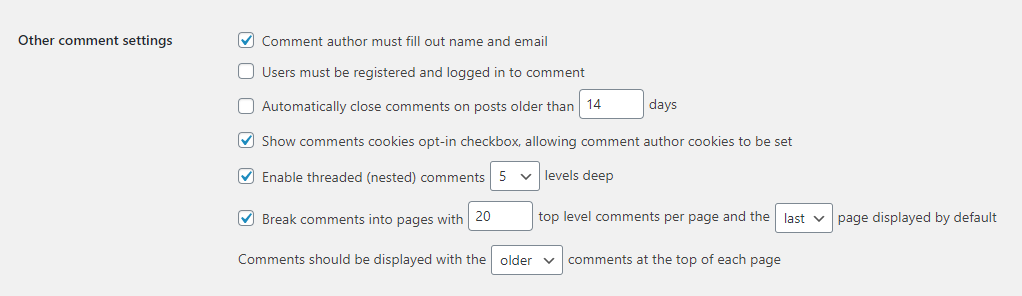
20-30 is a good middle ground.
Scroll down the discussion settings page, and you can also disable avatars.
7. Limit page and post revisions
Difficulty: Easy
Why should you do it?
Post revisions are useful. They let you go back and restore an older version of a post if you screw something up (it happens).
But too many of them can clog up and slow down the WordPress database. So we’d recommend limiting the number of stored revisions for each post to a maximum of 5.
How to do it
You can limit post revisions by adding a line to your wp-config.php file. In the example below, we’re limiting stored revisions to 5.
define('WP_POST_REVISIONS', 5);
Or if you don’t want any revisions at all, you can change the setting to:
define('WP_POST_REVISIONS', false);
Although completely preventing post revisions is generally not recommended for most.
8. Clean up the WordPress database
Difficulty: Easy
Why should you do it?
Over time, the WordPress database accumulates clutter. Post revisions, spam, and trashed comments… it all adds up.
And this can impact performance.
How to do it
If you’re using WP Rocket, it’s as simple as checking the relevant boxes (found under the “Database” tab), then hitting “Save changes and optimize”.
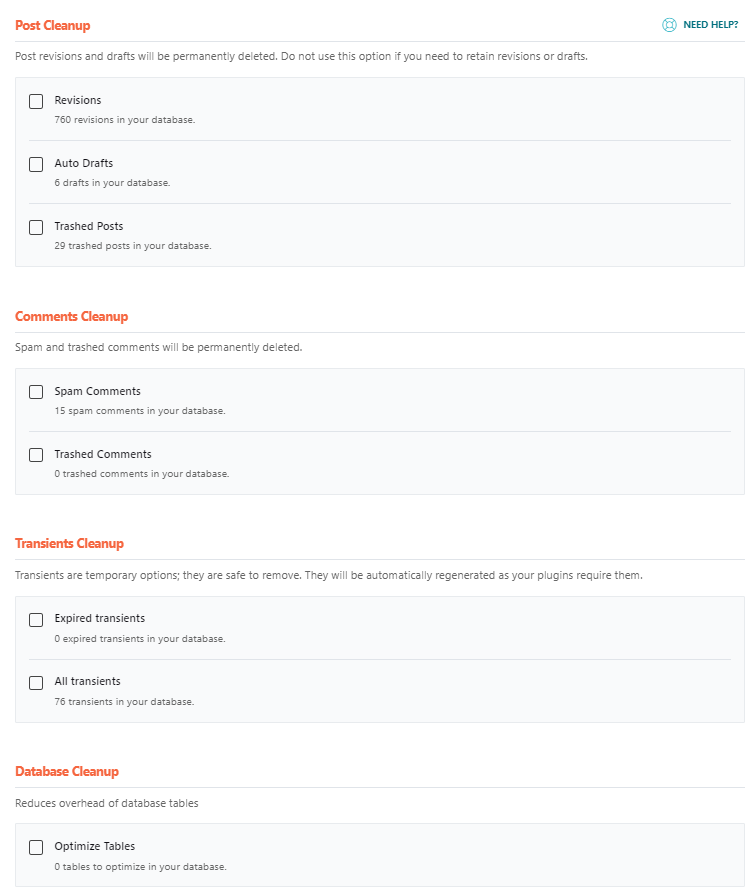
But there are also a number of stand-alone plugins (such as this one) that will take care of the job.
9. Remove unused or redundant plugins
Difficulty: Intermediate (removing or disabling plugins can alter functionality)
Why should you do it?
While some will be more resource-heavy than others, all plugins use resources.
So if a plugin isn’t providing important functionality for your site or you have multiple plugins serving the same purpose, then it’s time to do some spring cleaning.
How to do it
Just run through your site’s plugins and make a judgment call on what you actually need.
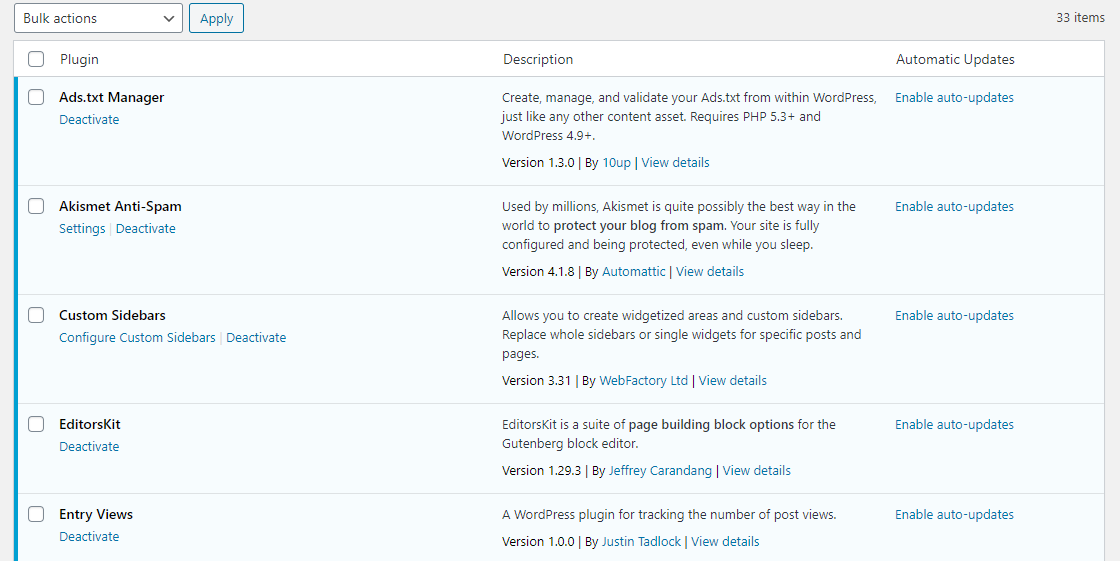
It’s common to see WordPress sites with multiple firewalls, SEO plugins, or other plugins that serve the same purpose.
However, two SEO plugins don’t make your site better optimized, and two firewall plugins don’t secure your site better than one.
Actually, the opposite is often the case.
So, in those cases, pick one and get rid of the other.
And while you’re there… make sure any plugins you’re going to keep are up to date!
10. Disable heavy, intensive features, plugins, or functions
Difficulty: Intermediate (this is a judgment call)
Why should you do it?
You want a cool website. And it goes without saying, you want to provide a great experience for your users.
But every flashy widget, every extra script, will add to your load time.
And in many cases, less is more.
How to do it
Run through your website with a critical eye and answer the following questions:
- Do I really need this function?
- What is it costing me in terms of speed?
- Is there any way I can “pare it down” to make it leaner and faster?
- What benefits does it bring to the site owner or users?
Trim the fat, and your website speed will improve.
11. Disable Emojis
Difficulty: Intermediate (if you’re not using a plugin, it’s going to involve editing functions.php. But the script is copy and paste)
Why should you do it?
WordPress has support for emojis. But that support comes at the cost of a 10KB file request on each page.
So could you use simple characters instead?
¯\_(ツ)_/¯
How to do it
WP Rocket disables emojis by default.
But if you want to do it manually, check out this guide from Kinsta, which includes the script for functions.php.
12. Optimize Disqus Comments
Difficulty: Intermediate
Why should you do it?
Third-party scripts (like Disqus) add bloat to your site. So in the long term, you might want to switch back to WordPress’s native comments system.
But if you decide you want to stick with Disqus (there are valid reasons for doing so), then it makes sense to speed it up as much as possible.
How to do it
First, you should disable Ad Trackers. They generate dozens of additional, resource-heavy tracking scripts.
Go to the Advanced settings of your Disqus Organization and make sure the following two checkboxes are disabled:

The second optimization is a bit more complicated.
It’s possible to lazy-load Disqus comments.
But while that’s good for pagespeed, we should point out that lazy-loaded Disqus comments might not be indexed by Google. And that could have a negative SEO impact.
If you want to do it, check out this guide from w3bits.
13. Change your theme to a light theme built for speed
Difficulty: Intermediate to advanced (from as simple as pushing a button, to a complex project requiring a full website migration strategy)
Why should you do it?
There’s no getting away from it, some WordPress themes just aren’t built for speed.
And if you’re stuck with a fancy theme that’s full of code bloat, and pretty (but ultimately pointless) bells and whistles, then no amount of tinkering is going to get your website’s speed up to scratch.
How to do it
If your theme isn’t too heavily customized, it might just be a case of picking a faster theme and switching over.
But if you’re locked in to your current theme, then run through our website relaunch checklist and tread carefully.
So which theme should you switch to? Our advice is to choose a theme that’s built with website performance in mind.
We like Astra and Generate Press.

Both are designed to be as light as possible and perform well out of the box.
14. Avoid Using Page Builders
Difficulty: Intermediate (if you currently have a lot of pages set up using a page builder, you’re going to need to ‘unwind’ them first)
Why should you do it?
Page builders (such as Elementor and Thrive Architect) make it easy to create custom layouts.
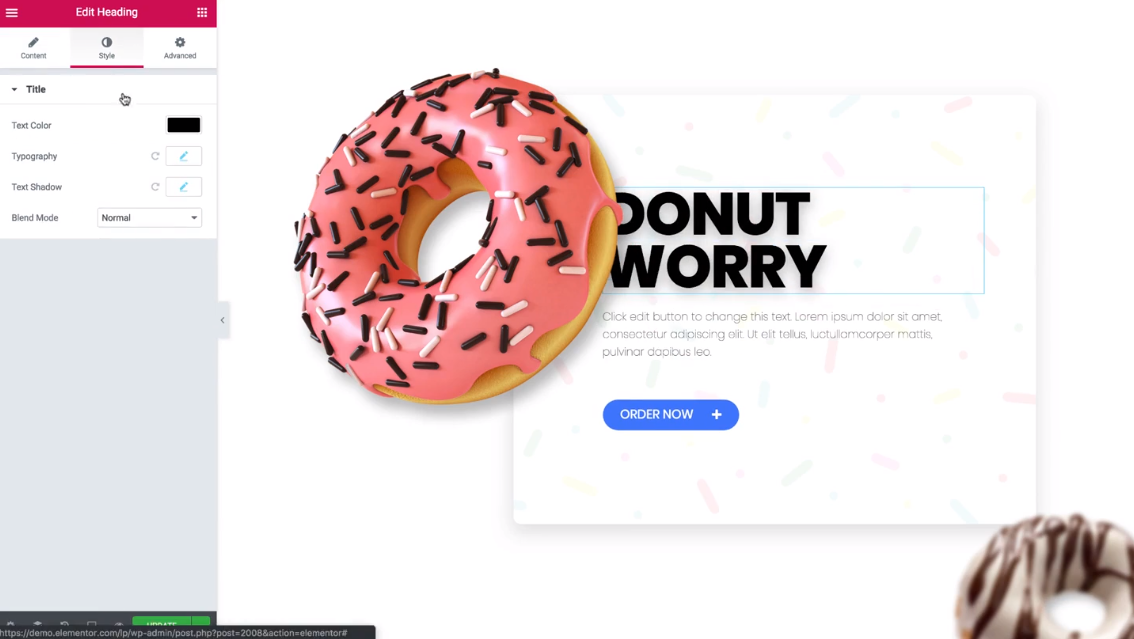
But those cool layouts can come at a heavy load speed cost, as you’re adding an additional framework on top of WordPress.
How to do it
Gutenberg was a game changer for WordPress. And these days, you’ll be able to create some pretty complex layouts out of the box.
But if you want to recreate everything you could do in your page builder, you might need to add some custom blocks.
Spectra Gutenberg Blocks is a free plugin that will get you close.
But depending on which specific layouts you require, you might need to opt for a premium blocks plugin.
15. Identify Slow Plugins using Query Monitor
Difficulty: Intermediate (Query monitor is reasonably intuitive, but might be a little daunting to non-technical users)
Why should you do it?
Sometimes, you have a gut feeling that plugins are slowing down your site. But you can’t put your finger on the problem.
So, how do you identify the culprit?
How to do it
Query Monitor is a plugin that allows you to troubleshoot poorly performing plugins and queries.
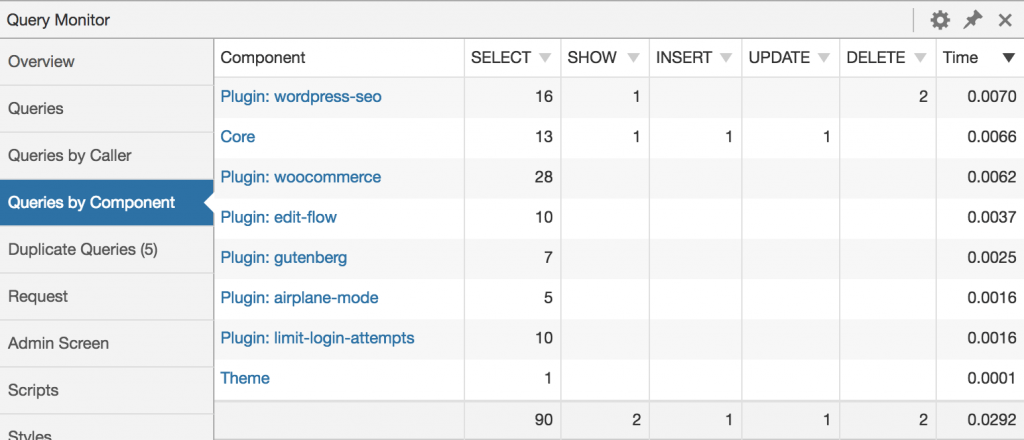
Once you determine which plugins are impacting your site’s performance, you can decide whether you want to remove them, swap them out, or take steps to fix their performance.
More you can do?
Page speed is something you keep building on over time. However, you always start with the basics.
Auditing your WordPress page speed according to the steps outlined in this post is a great start.
However, there’s more you can do.
If you haven’t optimized your server yet, check out our post on optimizing your server and infrastructure.
And we also have a guide with 12 Page Speed Optimization Tips for all types of websites to check out.
That should help you optimize the other side of the equation too.
Got questions after reading? Leave a comment below!